

Is your iPhone playing a game of peekaboo, turning on and off like it’s auditioning for a role in a tech horror film? You’re not alone. Many users find themselves frustrated as their trusty device decides to take an unexpected nap at the most inconvenient times. Whether it’s during a crucial call or while trying to capture that perfect selfie, this pesky issue can feel like a bad joke.
But don’t worry—there’s hope! With a little troubleshooting and some clever fixes, your iPhone can get back to being the reliable sidekick you know and love. In this guide, we’ll explore the common culprits behind this annoying behavior and provide step-by-step solutions to bring your device back to life. So, grab your phone and let’s dive into the world of iPhone repair, where every problem has a solution (and maybe a punchline or two).
Understanding the Issue
iPhones that repeatedly turn on and off present a frustrating challenge for users. This situation often stems from various factors, impacting device functionality.
Common Causes of iPhone Restarting
Hardware issues frequently contribute to unexpected restarts. A malfunctioning battery may struggle to maintain a charge, causing the device to turn off suddenly. Corrupted software serves as another significant reason for this behavior, particularly after updates or app installations. Physical damage, such as liquid exposure or drops, can impair components. Incompatibility with third-party accessories like chargers or cases might influence performance, too. Lastly, insufficient storage space can lead to system instability, prompting restarts.
Symptoms to Look Out For
Users typically notice distinct symptoms when facing this issue. The iPhone may flash the Apple logo repeatedly, indicating a boot loop. Applications might crash unexpectedly, frustrating everyday use. Delays during startup can signal deeper problems. Battery percentage may fluctuate erratically, making it difficult to estimate remaining power. Lastly, abnormal overheating might occur, suggesting underlying hardware concerns. Recognizing these signs proves essential for addressing the issue promptly.
Basic Troubleshooting Steps
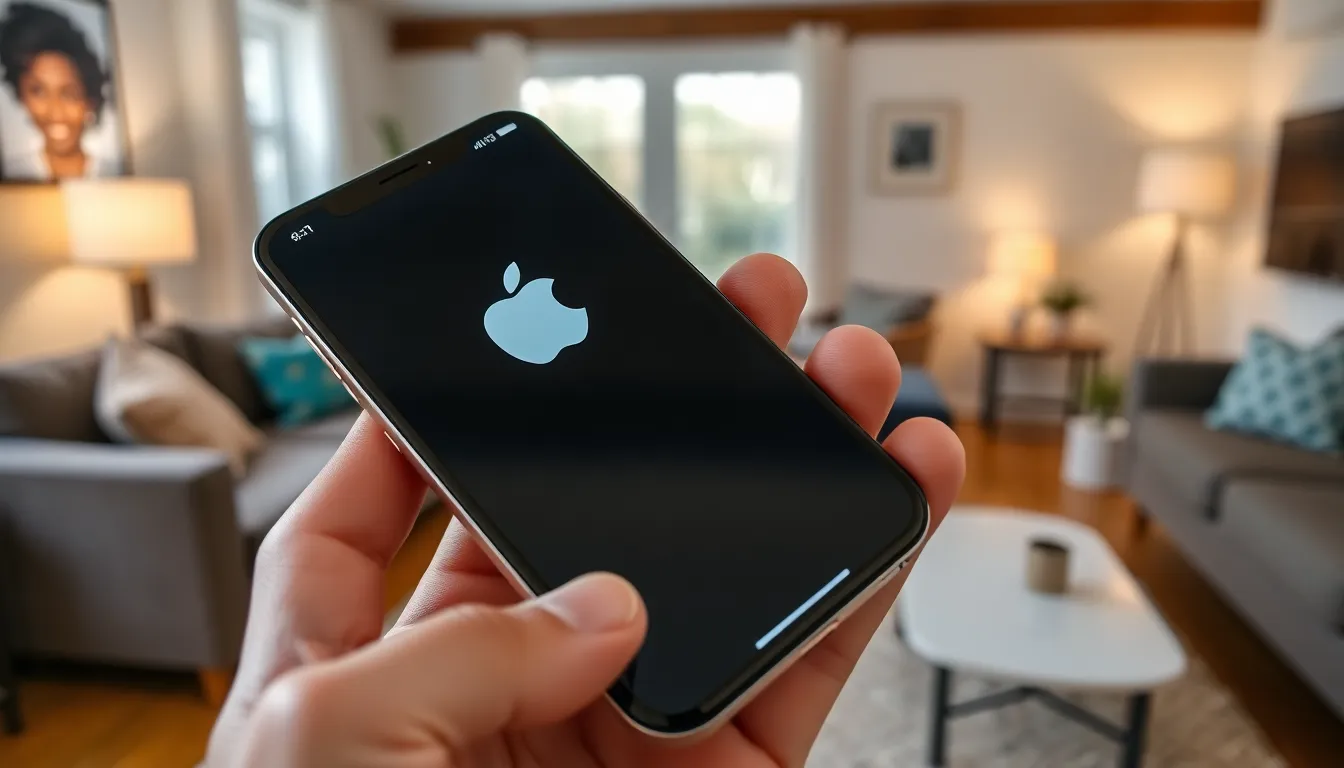
Addressing an iPhone that keeps turning on and off involves several basic troubleshooting steps. Users can often diagnose the issue with simple methods.
Force Restart Your iPhone
A force restart can often resolve minor software glitches. To initiate this, press and quickly release the Volume Up button, then press and quickly release the Volume Down button. Finally, press and hold the Side button until the Apple logo appears. This process doesn’t delete any data stored on the device. Performing this step may help reset temporary settings that cause the device to malfunction. Users frequently find this method effective for resolving unexpected restarts.
Check for Software Updates
Keeping the iPhone’s software up-to-date can prevent problems. Users should navigate to Settings then tap General and select Software Update. Apple regularly releases updates that fix bugs and enhance device performance. Installing the latest updates ensures the device runs optimally. If an update is available, simply follow the prompts to complete the installation. Regularly checking for updates can significantly improve device stability.
Advanced Solutions
Advanced solutions can effectively tackle the issue of an iPhone turning on and off repeatedly. Employing methods like restoring through iTunes and resetting all settings can help regain device stability.
Restore through iTunes
Restoring an iPhone through iTunes can resolve serious software-related issues. Users should connect their device to a computer and open iTunes. Once connected, they need to select their device icon and choose the “Restore” option from the summary tab. This process deletes all data, so backing up important files beforehand is essential. Following this, the user can set up the iPhone as new or restore from a backup. Doing this often eliminates persistent glitches leading to unwanted restarts.
Reset All Settings
Resetting all settings can fix various underlying problems without losing personal data. This option is located in the Settings app under General and Reset. Users just need to tap “Reset All Settings.” Once selected, the device may require a passcode for confirmation. This process returns settings to their defaults, but it retains apps, photos, and messages. Resetting all settings often resolves issues caused by misconfigurations, helping restore the iPhone’s normal functioning.
When to Seek Professional Help
Recognizing when to consult a professional can save time and prevent further damage to the iPhone. Users should consider expert assistance when basic troubleshooting methods fail.
Signs You Need Expert Assistance
Repeated issues during startup, like consistent crashes or a flashing Apple logo, indicate a deeper problem. Fast battery drain or overheating during light usage also suggests hardware issues. Significant physical damage from drops or liquids typically calls for expert evaluation. Unexpected app crashes or software glitches, even after updates, highlight the need for professional diagnostics. If these symptoms continue after performing advanced troubleshooting, it’s wise to seek help.
What to Expect from a Repair Service
Repair services generally offer a thorough diagnosis of the iPhone. Technicians begin by examining for hardware malfunctions, such as battery failures or damaged components. Software analysis follows, identifying potential corruption or incompatible applications. Estimates for repair or replacement costs will get provided upfront, along with timelines. Warranty coverage may be discussed, ensuring clarity on what repairs fall under protection. Qualified repair centers often offer support post-repair to ensure optimal device functionality.
Dealing with an iPhone that keeps turning on and off can be incredibly frustrating. By following the troubleshooting steps outlined in the article users can take significant strides towards restoring their device’s functionality. From simple force restarts to more advanced solutions like restoring through iTunes or resetting settings there’s a range of options available.
It’s crucial for users to recognize when professional help is needed. Seeking assistance from qualified repair centers can provide peace of mind and ensure that underlying issues are addressed effectively. With the right approach users can regain a reliable and fully functioning iPhone.

